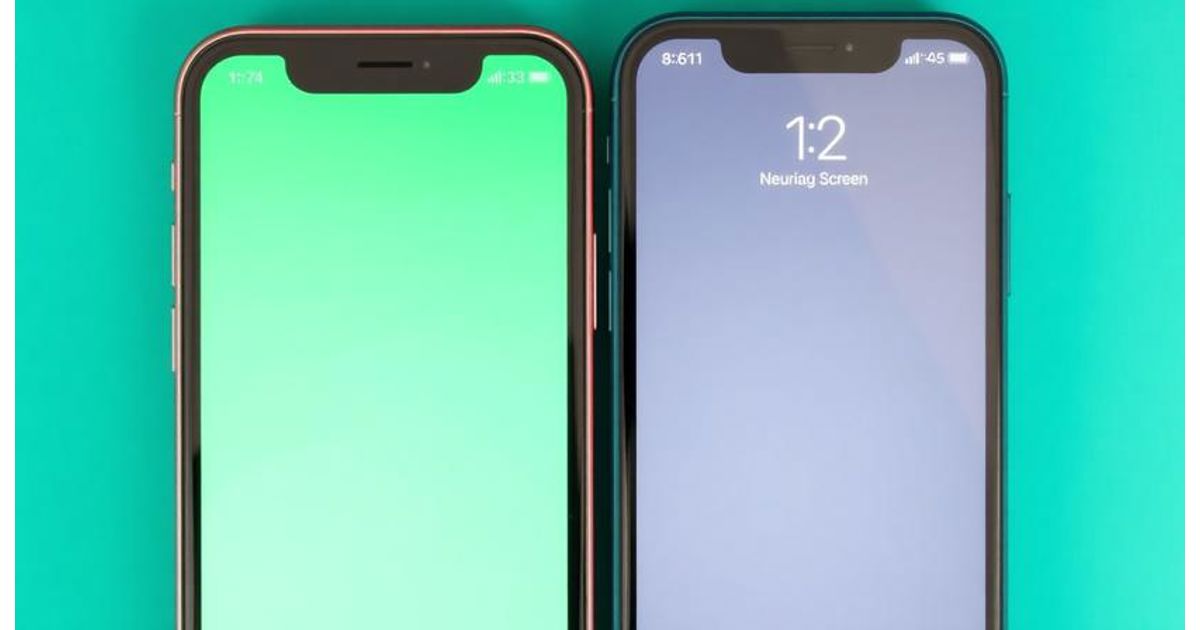
Seeing a green screen, lines, or tint on your iPhone 17 or 16 can be alarming. This often happens after a software update, a drop, screen replacement, or after intense gaming. The good news is, you can try a few things to figure out the issue and maybe fix it without needing to pay for repairs.
Why iPhones 17 and 16 Show Green Screen Issues
Software problems, display driver errors, or hardware issues with the OLED panel can cause green screen problems. Often, it starts after an iOS update, which suggests it might be a software calibration issue.
Physical damage is another usual suspect. Even a small drop can mess with the display connector, which leads to a green tint and vertical lines that can be temporary or stick around. Also, the screen can get discolored if the phone gets too hot when doing many things at once or while charging.
Things to Check Before Trying Fixes
Restart Your iPhone
Restarting can reset the display drivers and clear out temporary errors. Hold the volume and power buttons, slide to turn it off, wait a bit, then turn it back on.
If the green lines go away for a while, it's probably a software problem, and the steps below can often solve it.
Update iOS
Apple often puts out updates that improve how the screen looks on newer iPhones. Go to Settings, then General, and then Software Update. Install any updates waiting and restart your phone.
A lot of people have said that screen tint problems get a lot better after small iOS updates.
Turn Off True Tone and Auto-Brightness
True Tone and auto-brightness change the color based on the lighting around you. Sometimes, a problem with these features can make the green tint worse.
Go to Settings, tap Display & Brightness, turn off True Tone and Auto-Brightness. Observe whether the screen becomes stable.
Turn off Night Shift and Dark Mode
Night Shift adds a warm overlay but can occasionally clash with OLED calibration on specific brightness levels. Similarly, Dark Mode relies heavily on dark pixels, and any malfunction in OLED regions may appear more visible.
Disable both temporarily and test if the lines or tint fade away. This can help identify whether the issue relates to color profiles rather than hardware.
Adjust display brightness manually
Some users notice that green lines appear only at certain brightness levels. If the issue appears when the battery is low or when the display dims, manually increase brightness to 50–60% and check again.
Brightness calibration problems often show up only on lower light conditions. Testing at multiple levels helps pinpoint whether this is a system tuning issue.
Perform a force restart (not a normal restart)
A force restart resets more system components than a regular reboot. On iPhone 17 and iPhone 16, quickly press volume up, volume down, then press and hold the power button until the Apple logo appears.
If the green lines appear only after long sessions, this method is particularly helpful as it resets display services.
Reset All Settings
This option keeps your files safe but resets system preferences. Navigate to Settings, General, Transfer or Reset iPhone, and pick Reset All Settings. This often resolves tint issues caused by incorrect display profiles.
After the reset, immediately check display behavior before reinstalling additional apps or settings.
Use Apple Diagnostics
You can run diagnostics by contacting Apple Support via the Support app. They remotely run hardware checks and may detect display or logic board issues.
If a hardware fault is detected, Apple may recommend service or replacement. Recent models under warranty often qualify for a free or discounted display repair.
When tint or lines mean hardware damage
If your device was dropped or exposed to liquid, the display connector or OLED panel could be permanently damaged. Vertical green lines that remain visible on every screen usually indicate hardware failure.
In this case, only a display replacement can permanently fix the issue. Use authorized service providers to keep your warranty intact and ensure genuine OLED parts.
Should you factory reset?
Factory reset should be a last resort after trying the software steps above. It is useful if the issue started after a major update and persists even after smaller patches.
Back up your data, then perform a factory reset. If the tint returns immediately after setup, hardware is the likely cause.
Preventing future display issues
Use a shock-absorbing case and avoid exposing your phone to extreme heat. Also avoid using fast charging continuously on very hot days, which may stress OLED hardware.
Enable automatic iOS updates to receive quick calibration fixes from Apple as they roll out. Early adopters of new iPhone models often benefit from these incremental updates.
Conclusion
Fixing green screen, green lines, or green tint issues on iPhone 17 and iPhone 16 begins with ruling out software glitches before assuming hardware damage. Update iOS, adjust display features, test brightness levels, and try force restarts. If the problem persists after resets and Apple Diagnostics confirm hardware issues, a professional screen replacement is the most reliable long-term solution.
Following these steps gives you the best chance to restore normal display quality and avoid unnecessary repair costs.